Time for some instructions on using the update!
Connection Tab
What does the "http://" window do?
What does the "Port" window do?
What does the "Savedata Upload Format" window do?
What does the "Get from Server" button do?
This is all about transmitting your in-game data to a web server. If you specify a url in the
http:// box, every time the game log file is updated, it will attempt to connect to the server on the specified port and post the contents of the file as a HTTP Post.
The format box allows you to design your HTTP post string in the format your server is expecting. To insert text from a particular line of the savedata file, insert the text @1 for line 1, @2 for line 2 etc. The
Get from server button will be implemented soon - it will send the server a request asking it how it wants the data configured and the server should hopefully provide the format for you. This means you can configure it to JSON MapMan

Dynamic Map Tab
What do I put in the "Map Input File" window and what will it give me?
What do I put in the "Map Output File" window and what will it give me?
Remember I was waffling on about a dynamic map ages ago that directly mods the map image while the game is running? This is it! When you have the map files set up and click the
Save button, it will output a map image based on your recorded entries and jump routes to a location of your choice. I send it directly to the \\hud\\map.png file where it updates your quadrant map. You can overlay this map image on top of a background image of your choice.
To set it up
- You need a image file to start off with. You can use a custom background image of your choice or a plain black .png square. It's up to you. Save this image wherever you want.
- Close Evochron Mercenary if you have it running. If you add or remove hud files while the game is running, it will crash. And rightly so too.
- Open up the Map Log program and select Options
- Select the Dynamic Map tab
- Click the button next to the input file and browse to the image file you created or downloaded earlier.
- Click the button next to the output file and browse to the Evochron Mercenary install folder (the default is c:\\sw3dg\\EvochronMercenary\\
- If you can see
EvochronMercenary.exe, you are in the right folder and need to create a folder called
hud if it is not there already. You want to save this file in the hud folder as
map.png if you want to overlay the main map file.
- Once you have selected both input and output files, click OK to close the settings
- Click the Save button on the map log program
- Check to see it has created the file and inspect the file to see if it looks OK. The result will depend on the size of the input file and type. A png image input will give a cleaner looking output file for the game. I tend to use an 800x800 pixel png black square as a source file.
- Once the file is in place, you can run the game and use the map log as usual.
- Once you have recorded new systems, you can click the save button to save your current data and also re-build the dynamic map. The next time you open the quadrant map, you should see your new addition!
- To disable the dynamic map updates, delete the source file text.
- To revert back to the original map, close mercenary then delete the map.png file from the /hud/ folder
Note this isn't anywhere near as elegant as MapMan's implementation of a dynamic map, but it's a slightly different functionality so I'm hoping I'll be forgiven!


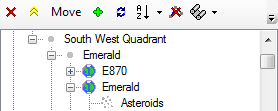


 It's not that frustrating. You just need to keep in mind that it might all be one star system. Graph paper helps me determine which way to go for the 200-sector offsets. And, when you click on that trilateration option and get a set of possilble coordinates ... well, it's like giving birth. All the frustration is (all of a sudden) worth the effort.


 Today, before starting the hunt, I launched Atoll's program again and, this time, I only checked the Log box. After finding said hidden system (without a hitch), I put all the planets in the game Log. All the other entries were also still in the game log. But ... (drum roll) when I ticked the Nav box, only the new entries uploaded to Atoll's list.

 Very interesting. I'll take a look at it and see how it jives with swapping out HUD files via the Generic Mod Enabler.