

So I was mining in the Rucker system when I started to get attacked by some bad guy and when I warped out of the area, all of the planets, asteroids and stations disappeared. The fully zoomed out map still shows them in the navigation menu, but when I zoom in on the map it changes to dead/empty space. When I warp to whatever sector that i see the planets and stuff in fully zoomed, it is empty space too.
NPC ships still jump in and out of sight. They will still come up and do trade requests (or attack if it applies) but there is no more gates, planets, or anything else for me to interact with. Any idea what I can do to fix this? there isnt even a gate for me to go to a different world
Empty space error? (no visible planets, asteroids, etc)
-
mgoff1
- Ensign

- Posts: 1
- Joined: Tue Oct 15, 2013 10:45 pm
-
Vice

- Administrator

- Posts: 12227
- Joined: Fri Apr 25, 2003 1:38 am
Empty space error? (no visible planets, asteroids, etc)
You probably just jumped up or down vertically at least one sector outside of the galactic plain with those objects. Check your vertical SY sector location and compare it to the objects you can see zoomed out using both the overhead and the rear view map modes. Remember that space is fully 3D, so you can travel well above or below what you see on the map beyond the sector(s) they are in.
-
Marvin

- Global Moderator

- Posts: 14373
- Joined: Wed Mar 04, 2009 5:47 am
- Location: Fallon-Reno
Empty space error? (no visible planets, asteroids, etc)
 This is from a much bigger tutorial ... but, since this is one of the most-asked questions (and, except for a few graphics changes), I figure it could stand being repeated.
B. Sector Navigation. Besides in-sector coordinates, the Current Position and Destination Position windows display sector coordinates. If you haven't already done so, click on the "Top View" button to switch the 3-D map back to an overhead view.
Three boxes are located directly to the left of the map. Two buttons, close together in the top box, allow you to zoom the map in and out (see Figure 6). At the bottom of the next box down, the current zoom range is displayed ... and it should now be showing a zoom factor of 1X (Figure 6).
Click twice on the "Zoom Out" button to extend the range to 3X ... giving you this view of the map:
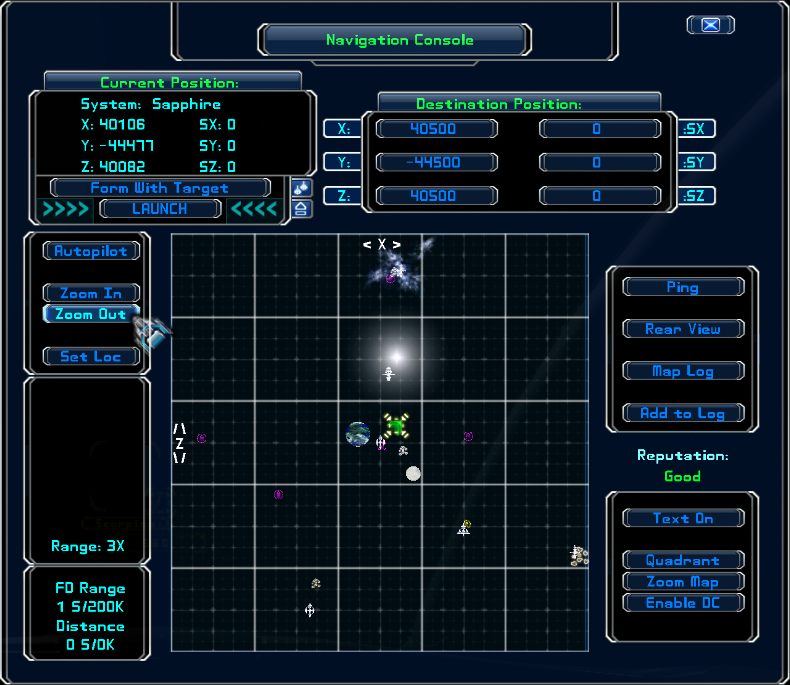
Figure 7
Now, here's where many new pilots get into trouble. Or, rather, where they get confused, thinking there's a bug in the map.
Usually, you can set a nav point for any of the objects displayed on the map by right-clicking on the object. For example, place your cursor over the purple icon at the far left edge of the map and right-click. This is what should then happen:
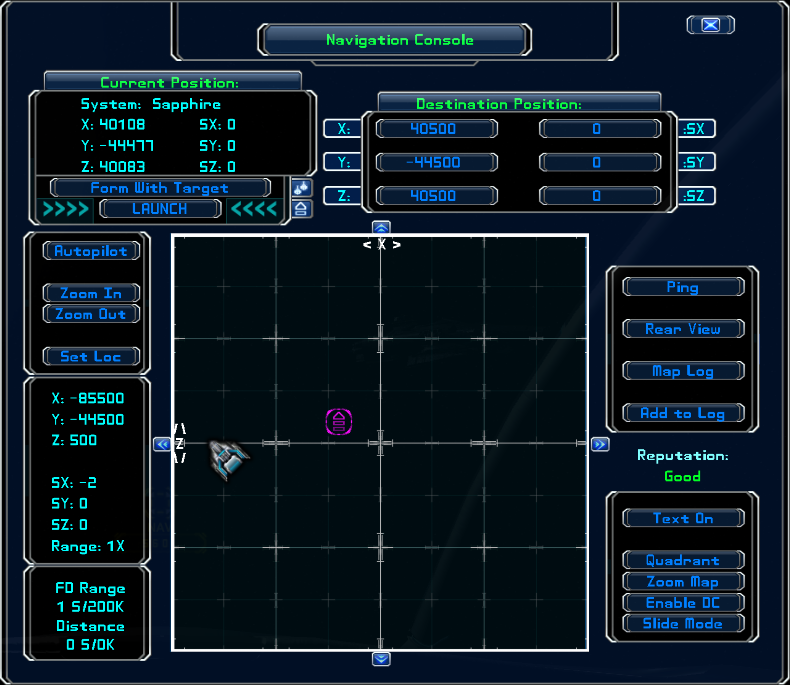
Figure 8
The map has zoomed in on the object. If you right-click on it again, it will set a nav point directly to the object. Like so:
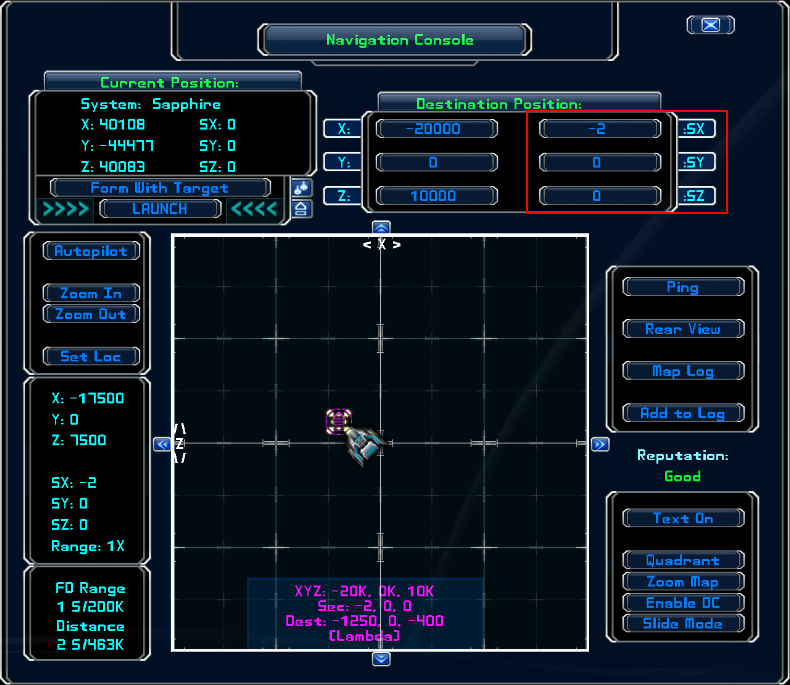
Figure 9
Make note of the destination coordinates. Not only have the in-sector coordinates changed, so has the X sector (SX) coordinate (see Figure 9). That's because each big square represents one sector ... and you've set a nav point that's two sectors due west, which is along the X axis. If you had, instead, clicked on the star icon one sector due north of your current location (see Figure 7), the SZ coordinate would've changed. And, if you'd clicked on the far-right asteroid icon, both the SX and SY coordinates would've changed. (Go ahead, zoom out and give it a try.)
Now zoom back out to 3X ... and try the same operation on the white station icon at the bottom-left of the map in Figure 7. When you do, this is what you'll see:
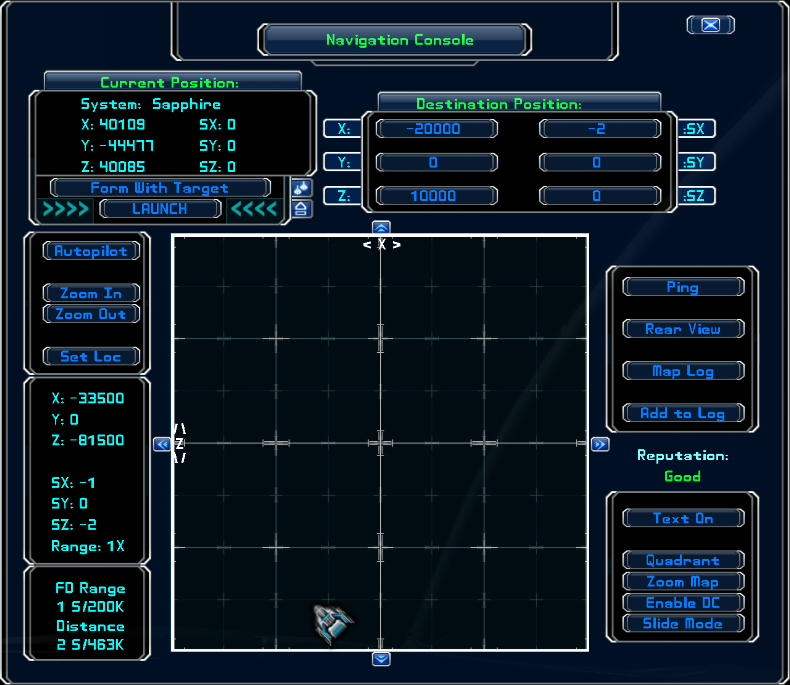
Figure 10
Nothing. No icons. Just blank space.
Once again, zoom out to 3X and left-click on that white station icon to put your navigation point somewhere within the station's sector. Then click on the "Rear View" button to flip the 3-D map. When you do, this is what you should see:
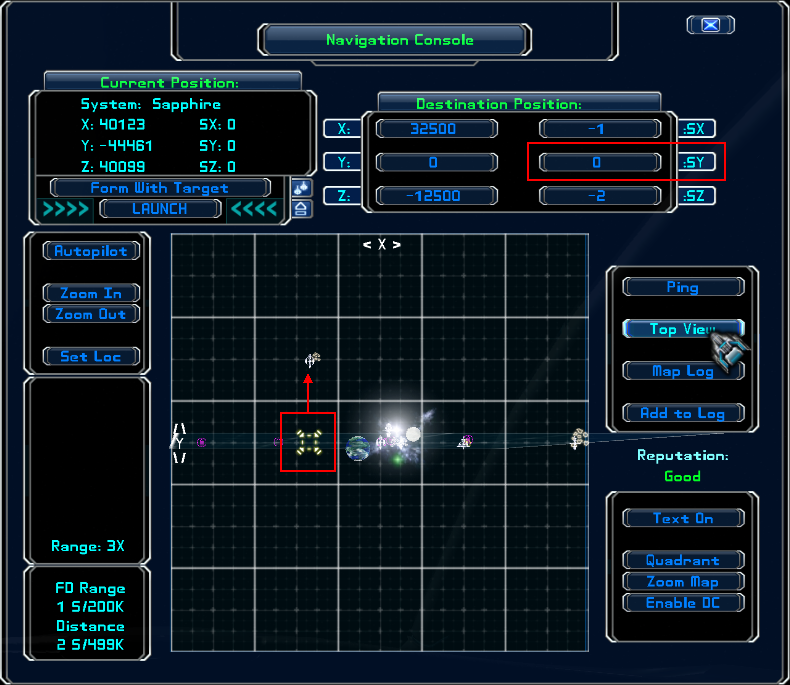
Figure 11
Notice where your nav point is located: in the proper position ... but only in the horizontal. Why? Because the actual destination is one whole sector above everything else (including your ship). Check the destination sector coordinates in Figure 11. SX and SZ are in the ballpark but the SY coordinate is still set to zero.
You can only set the Y and SY coordinates when the map is in the rear view (unless you do it manually). And you cannot right-click to zoom in while in the rear view. So, left-click anywhere in the station's sector (indicated by the red arrow) to set the SY coordinate. Like so:
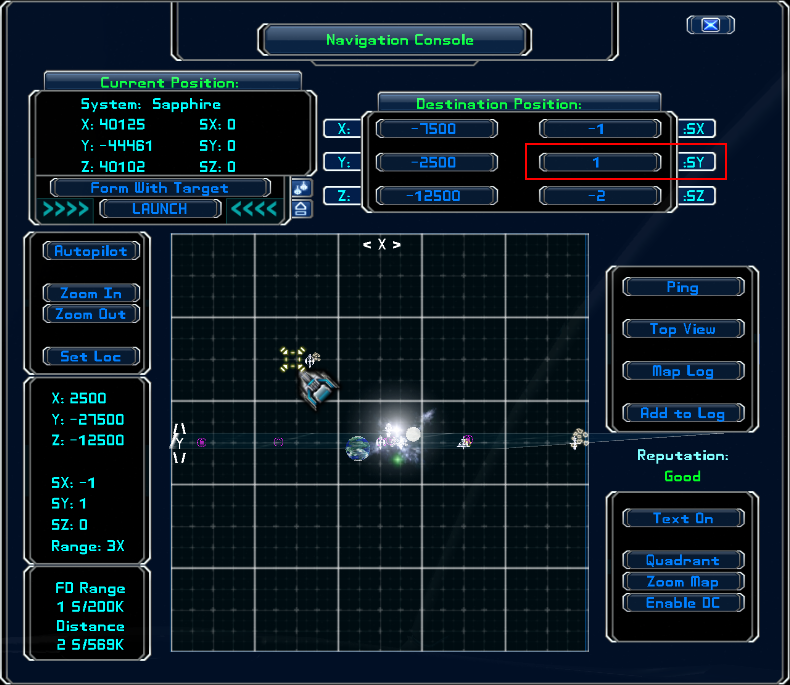
Figure 12
Now SY is set to the proper vertical coordinate (in this case, SY=1). Switch back to the top view and right-click to zoom in on the correct sector.
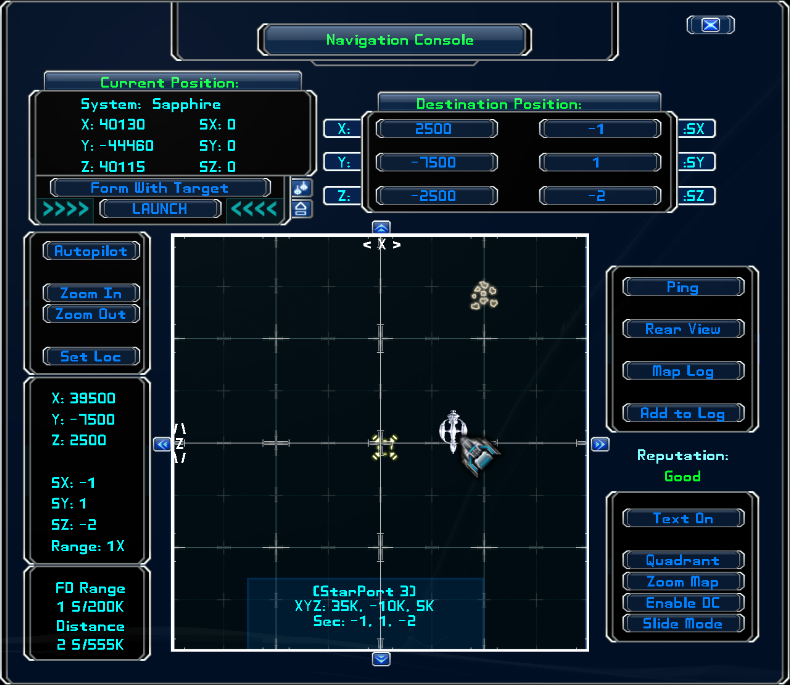
Figure 13
Right-clicking again will center the nav point over your intended target.
C. A Word Of Caution. When using the jumpdrive to get to a navigation point, do not use the Alt key in conjunction with the jumpdrive key (default F2). The combination Alt+F2 is only used in emergencies; it ignores the current nav point and, instead, sets a new nav point to a location directly in front of your nose at the maximum distance of your current jump drive.
[Edited on 10-16-2013 by Marvin]