You can start a quest at any time you're in single-player mode. The more complex quests have been scripted by members of the Evochron Legacy community but, for those unfamiliar with how quests progress, it might be a good idea to begin with one of the first two quests.
When beginning a new quest, you start out with a 'Quest Progress' of one (1). The quest progress for each pilot profile is listed under the 'Pilot Statistics' section on the upper-left side of the 'Available Pilot Profiles' menu. Progress is split into two sections: Current Quest / Current Stage in that quest.
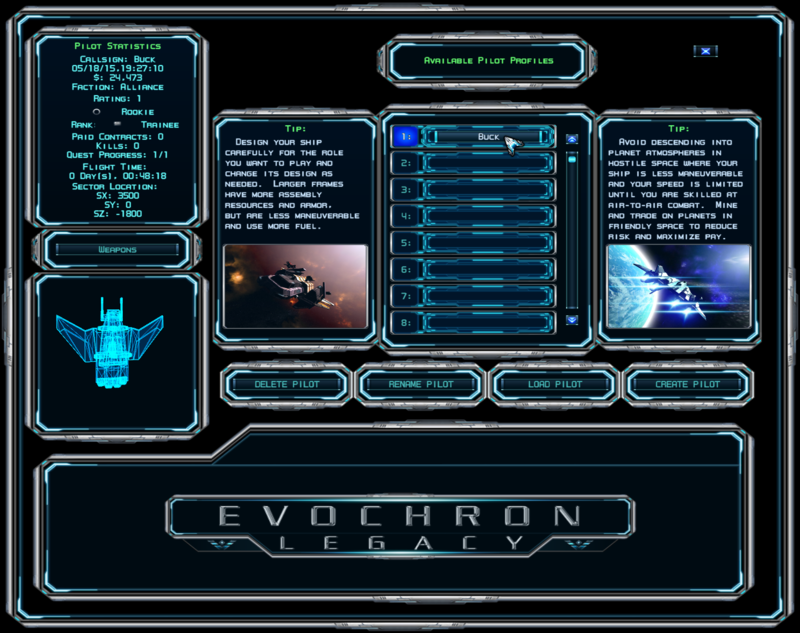

Quest Progress: 2/5
Note: Quest progress isn't necessarily linear. Sometimes the quest allows you to make a choice or sets you up to either complete or fail a task. Usually, completing a task will send you to the next stage in the quest while failing the task (or taking a different route) will send you to a branching stage. If that happens, you could, for example, move from stage 12 to stage 100. And, from there, to stage 101 or back to stage 13.After you've selected and loaded a profile, launch the game in the usual way.


After you click on your selected quest, information about that quest is displayed above, in the 'Current Quest Details' section. If either you haven't selected a quest or the quest you've selected is the first 'Beginning of a Legacy' quest, all the information will pertain to Quest 1. After you've clicked on another quest, the data will change to reflect the details of your selected quest.
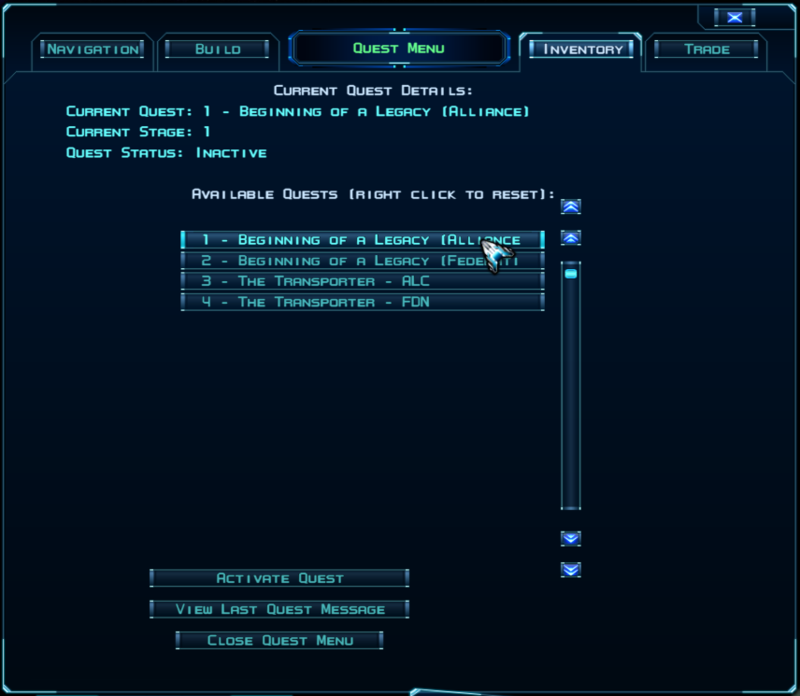
Note: Even though the 'Available Pilot Profiles' will reflect your currently selected quest, you must still activate the quest each time you launch the game.
Re-Doing a Quest From the Beginning. If at any time you decide to start over again with a previously played quest, you can reset the quest to Stage 1 by placing the cursor over the listed quest and right-clicking.
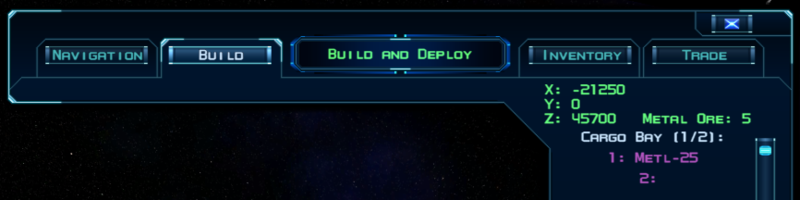
Building or Deploying a Module. In some quest scenarios you might be required to build or deploy a module in a specific location. If so, the exact location for the module will be displayed in the upper right corner of the Build console, in green text. Since most modules will be built or deployed at a distance from your ship's location, the X, Y and Z indicators will insure an accurate positioning.
The Quest Waypoint Marker. Most of the time, each stage in the quest will provide you with a purple waypoint marker. The marker indicates where you must next go and, if your destination is within hyper-jump range, you can right-click on the marker and either jump directly to the location or use autopilot if the point is more than one jump away. If your next waypoint is beyond jumping range, you can still find it by using the Quadrant map, right-clicking on the designated (or suspected) star system and zooming in to find the waypoint marker.


The Timer. Some quests occasionally make use of a timer. The timer normally requires you to complete a specific task or mission within a specified number of minutes or seconds. If you exceed the limit, your follow-on options might differ from those you would've received had you completed the task. Depending on the scenario, the timer will either be hidden from view or it will be displayed in the lower-right corner of the HUD.
Note: If, at some time during the quest, the scenario appears to get stuck, then the culprit might be a hidden timer. As a test, try quick-saving the game (Alt-F9). If the timer is running, the game won't allow you to save and you'll know to wait out the time either by completing contracts in the sector, mining for ore, engaging enemy ships or just hanging around until the time expires.
Quest Messages. Each completed stage of the quest triggers a follow-on stage. Sometimes you'll be required to examine a message buoy (data drive) or shipwreck. Both objects are likely to generate a message of their own, separate from the quest message. If, as you approach the object, you receive a chat message in white or light gray, it will be from the object. Move closer to the quest waypoint to trigger the quest message, which is usually (but not always) purple.


 Yes. In the area. You'll need to perform a proper search pattern. Open your Navigation Console and zoom the map all the way out. Then pick a direction (I usually start by picking north) and jump halfway to the edge of the map. If you don't see what you're looking for, begin a clockwise search with your original location at the center. After the first full circle, jump north again by the same amount. After two or three circles, you should find the wormhole.