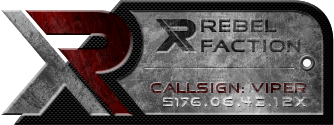
Your Photoshop skills are obviously increasing Kingarthur, really nice progress there!

I noticed you lean towards metal/chrome look designs a lot. If it helps, I'd like to give you two very simple ways to create a very realistic metal/chrome effect. I made a quick example for you to see what kind of result you can get in under a minute of work.
1) Right click on your layer and go to Blending Options. Click on Gradient Overlay and create a custom repeating gradient that runs from close to white to close to black. Add several color changes (as in black-white-black-white-black-white) and play with the gradient sliders until you have a glossy metal effect like you see in the images below.
(In the examples I added a slight blue to make the colors resemble the color of metal better. I personally find that plain gray leans towards brown too much.)
Optionally, you could add a slight Bevel & Emboss to it like I did as well.
2) What really makes it look great is adding a grungy look to it by adding a pattern overlay in your blending options or simply painting over the window frame with your brush tool. You can get tons of really great grunge brushes on Deviantart.com (also 'rust' ones, which give it a really nice 'worn' look as well!).
Again optionally, you could also add a glass glare on top of the center part of the window by creating a selection in the upper half of it and drawing a white-to-transparent gradient from top to bottom, starting and ending outside the selected area. Set the opacity of the glare layer to like 15-25%.
Here are two examples, the first having a rounded glare, the second a rectangle one (and the rest of the techniques applied as described above):


Hopes this helps with your metal cockpit designs. Keep up the good work!

Edit:
The examples are only 72ppi I think, for the game you should use 150ppi.
[Edited on 5-24-2012 by Viper]